

In the world of HR digitisation, “Journeys” have become the backbone of how we manage employee transitions—be it onboarding, promotions, or offboarding. But for a long time, there was a specific hurdle that often slowed down the momentum: getting things signed.
Until recently, if you wanted a formal electronic signature within a Journey task, you were largely tied to heavy-duty third-party integrations like DocuSign. While these platforms are excellent, they often added a layer of cost and administrative complexity that didn’t always fit for every business.
That’s why the latest updates in the 25D release are such a game-changer. We are finally moving away from “one-size-fits-all” third-party dependencies and gaining more flexibility in how we capture signatures.
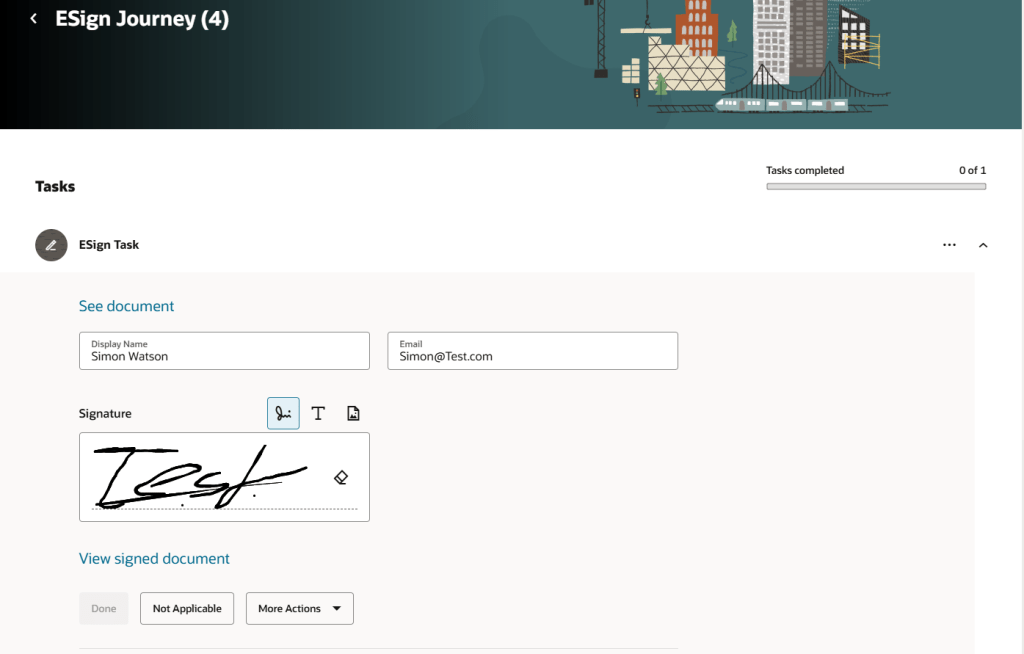
Now electronic signatures for journey tasks supports below flexible options:
- Drawing on screen.
- Entering text.
- Uploading an image of manually drawn signature.
Steps to Enable –
- On the home page, click the My Client Groups tab.
- Click Show More under QUICK ACTIONS.
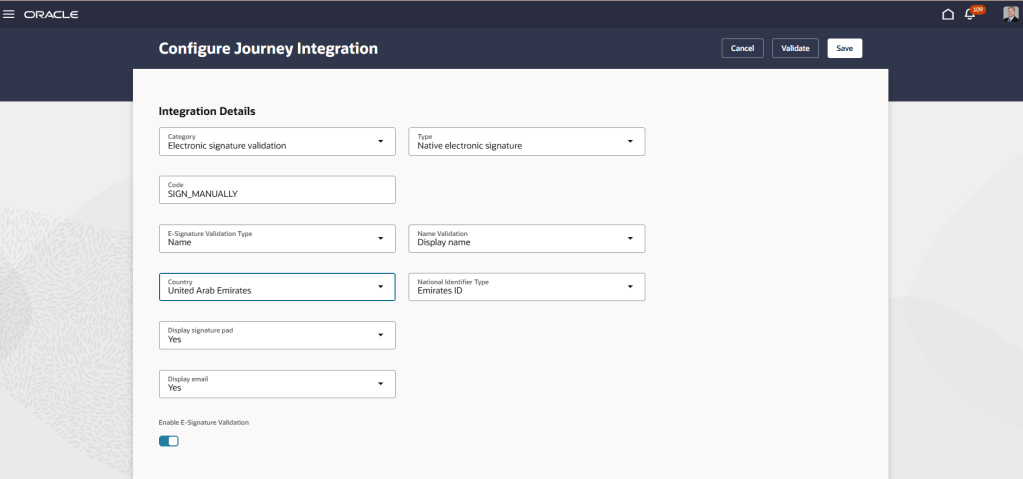
- Click the Journey Integrations tab, and then click Add.
- Select Electronic signature validation for the integration category and Native electronic signature for the integration type.
- Enter the integration code, eSignature validation type, and other details.
- Select Yes in the Display signature pad field.
- Select the Enable E-Signature Validation check box.
- Click Validate in the Validate Integration Details area.
- Click Save and Close.
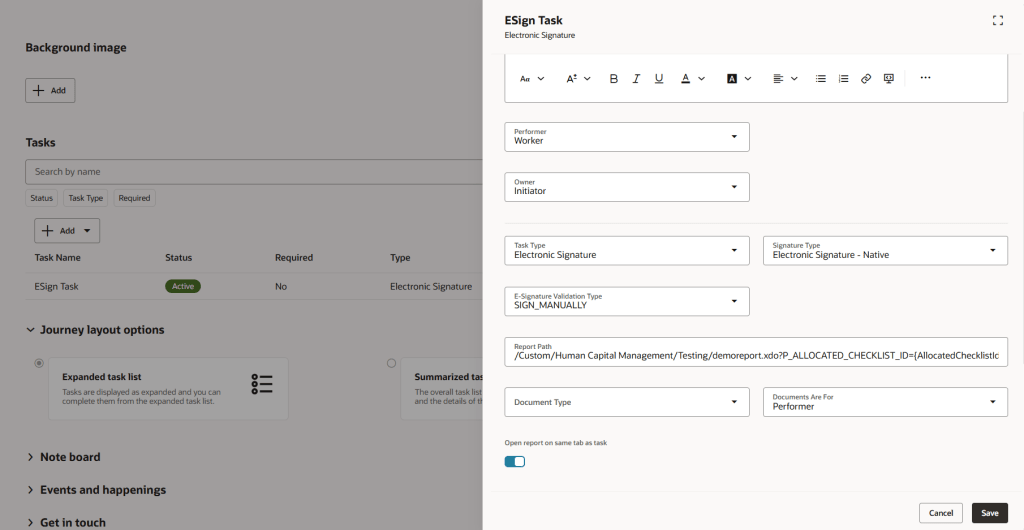
- Navigate to the Journey Templates page.
- Click the journey name for whose task you want to sign.
- Click the Tasks tab, and then click the task name having task type Electronic Signature for which the user needs to sign.
- Select Electronic Signature – Native for the signature type and select the validation type that you entered while configuring the integration.
- Enter the report details and select the Open report on same tab as task check box.
Task Performer will see the signature option on their login –
 FusionPeopleHub
Leave a comment