
In the world of HR technology, we often talk about “frictionless” experiences, but the reality for most employees is anything but. When someone wants to know why their paycheck looks different or how many vacation days they have left, they usually have to hunt through three different portals or wait 48 hours for an HR business partner to email them back.
With the latest Oracle HCM updates (specifically the 25D release), that’s finally changing. Enter the Employee Concierge Agent.
Why This Matters: It Speaks Your Language (Literally)
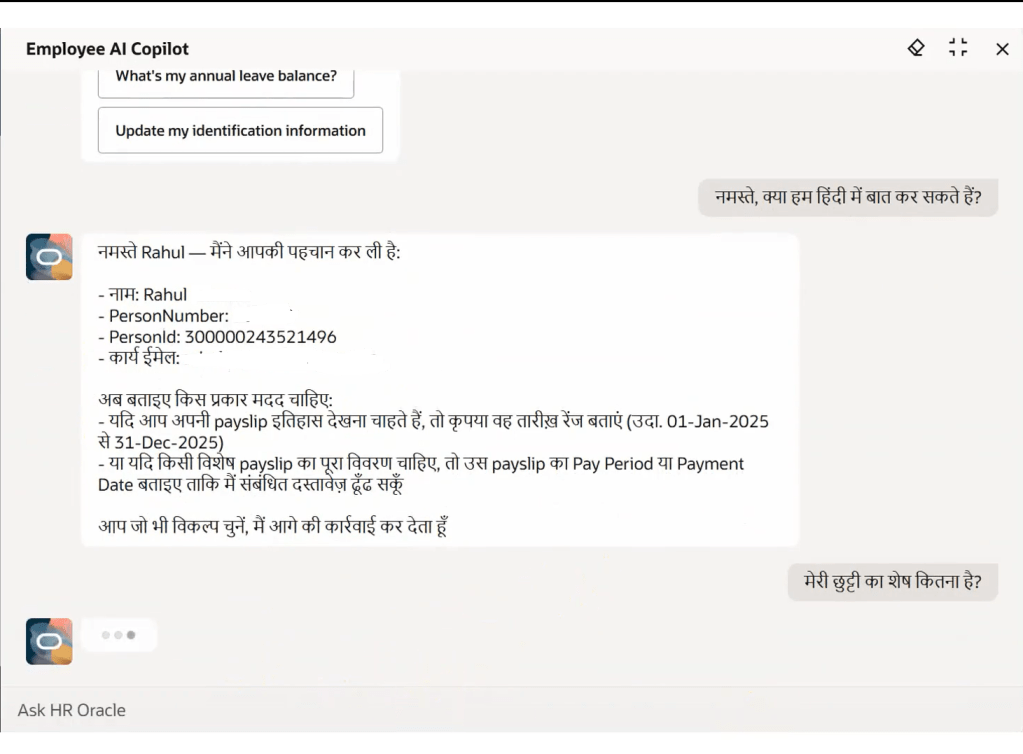
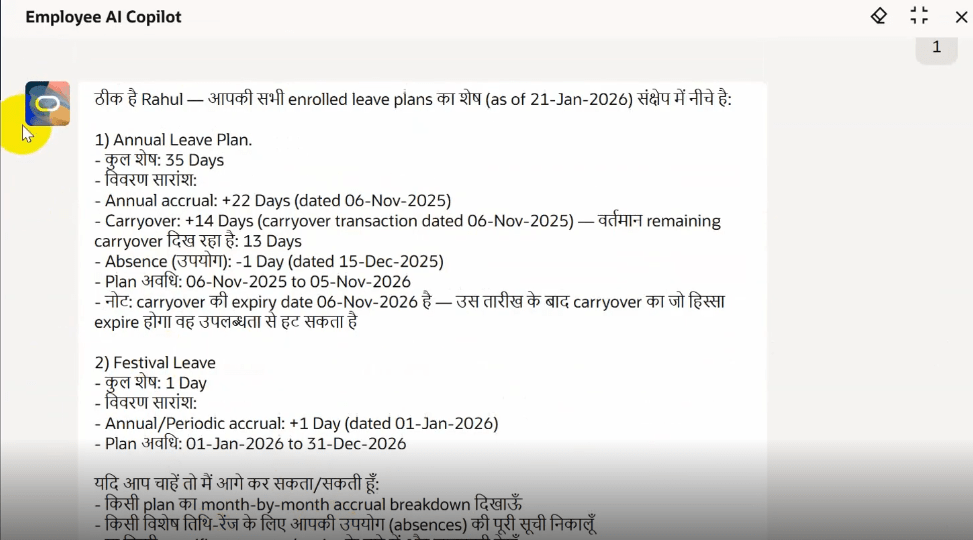
One of the coolest features of this agent is that it’s multilingual and will keep evolving with every quarterly release. In our global work environment, not everyone wants to discuss their complex benefits or pay discrepancies in English. The Concierge can interpret and respond in multiple languages, ensuring that every employee—regardless of where they are in the world—gets the same high-level support and clarity. I have tried it in Hindi, Marathi, Telugu etc.
The Employee Concierge is actually a “super-agent” that coordinates several specialized experts under the hood:
- The Pay Analyst: Can explain deductions on your last slip or pull up your net pay from three months ago.
- The Leave & Absence Analyst: Helps you check your PTO balance or even submit a request for time off right there in the chat.
- The Benefits Analyst: Tells you exactly which medical plan you’re on and who the provider is without you needing to find your insurance card.
- The Compensation Advisor: Gives you the “big picture” of your total rewards, including stock vesting schedules and bonus history.
If your organization is on Oracle HCM, the 25D release is the time to start looking at how AI agents can change your internal culture. It’s not just about efficiency; it’s about respect for your employees’ time.
Steps –
- Go to Navigator > Tools > AI Agent Studio.
- Search the Employee Concierge template and click Copy Template.
- Add a suffix to the template. This will ensure that all the building blocks of the agent team are created and named as per your configuration nomenclature.
- Publish the agent.
- Create a guided journey and add an agent type task. For details, see Configure Agent Guided Journey.
- I enabled it on My Activity Centre page which is Redwood page.
- In Visual Builder Studio, browse My Activity Centre Page and select edit. For details, see Extend Application Page with Agent Guided Journey.
- Add the agent code.
- Publish the redwood changes from page.
Are you planning to implement AI Agents in your HR workflow? Let’s talk about the challenges and wins in the comments!
 Fusion People Hub
Share your Feedback