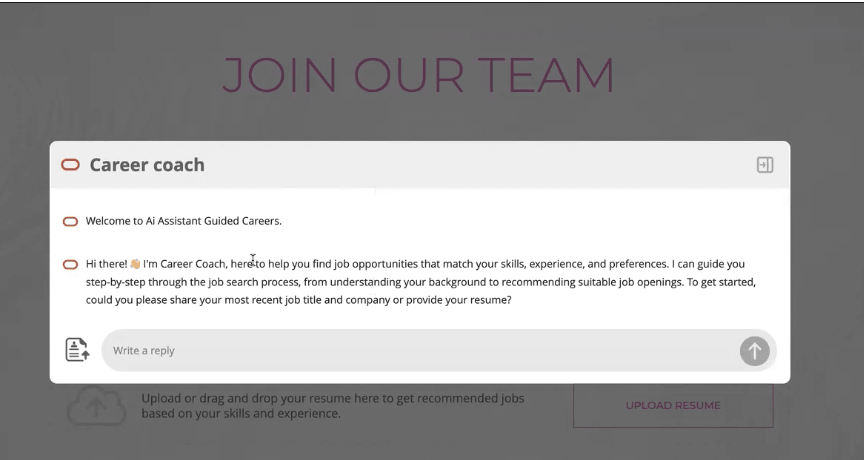
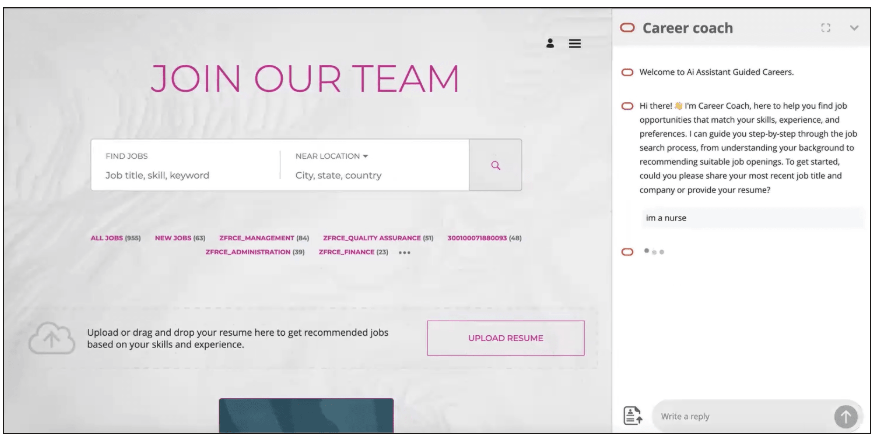
The standout feature of 25D is the AI Career Coach. Replacing the traditional Digital Assistant, this generative AI-powered agent acts as a personal guide for candidates.
Job Recommendations Agent: Candidates can upload a resume or answer a series of questions. The AI builds a mini-profile in real-time to suggest the most relevant job openings.
Job Fit Agent: Once a candidate views a specific role, the agent evaluates their skills against the job description to explain why they are a good match, significantly improving application quality.
Seamless Integration: It appears as a sleek side panel or a minimized icon with notification dots to keep candidates engaged without being intrusive.
Technical Tip: If you are currently using the Oracle Digital Assistant (ODA), enabling the new AI Agent will automatically replace it. Ensure your site uses multi-page application flows to avoid UI issues at different resolutions.
To enable and configure the AI Agent follow below technical steps:
1. Enable the AI Agent
Before you can configure the specific behavior of the agents, you must activate the feature at the site level.
Go to Setup and Maintenance.
Search for and select the task: Recruiting and Candidate Experience.
Select Candidate Experience, then click Career Sites.
Find the career site you want to update and click Edit.
Navigate to the General tab and open the AI Agent section.
Toggle the Enable AI Agent setting to Active.
Note: Activating this will automatically replace the existing Oracle Digital Assistant (ODA) on that site.
2. Configure the “Job Recommendations” Agent
This agent helps candidates find roles by analyzing their resumes or through a guided Q&A.
In the same AI Agent section, locate the Job Recommendations Agent.
Set the status to Active.
Select the Interaction Mode:
Guided: The agent asks the candidate a series of questions to narrow down job matches.
Resume-based: The candidate uploads their resume, and the AI extracts skills and experience to suggest roles.
(Optional) Configure Questions: If you chose “Guided,” define the sequence of questions (e.g., “What is your preferred location?” or “What functional area are you interested in?”).
3. Configure the “Job Fit” Agent
This agent explains to the candidate how well they match a specific job description.
Locate the Job Fit Agent within the AI Agent settings.
Set the status to Active.
Define the Logic: Configure whether the “fit” should be calculated based on the candidate’s uploaded resume or their manually entered profile data.
Set the Display: Choose how the fit explanation appears to the candidate (e.g., as a summary on the Job Details page).
4. Customize the Agent UI (Appearance)
You can brand the AI Agent to match your company’s identity.
In the Career Site editor, go to the Styles or Branding tab.
Look for the AI Agent Styling options.
Upload Icons: Replace the default Oracle icon with a custom “Career Coach” or company-branded avatar.
Set Primary Color: Align the agent’s chat bubbles and buttons with your brand colors.
5. Finalize and Publish
Click Save and Preview to see how the agent interacts with your current site layout.
Once satisfied, click Publish.
Verification: Visit your live career site. You should see the new AI Agent icon (or a side panel) with notification dots inviting the candidate to start a conversation.
Technical Requirements Checklist
Permissions: Ensure your user role has the Configure Recruiting Candidate Experience (ORA_IRC_CONFIGURE_CANDIDATE_EXPERIENCE) privilege.
Search Index: Ensure your Job Requisition search index is up to date, as the AI Agent relies on indexed data to make recommendations.
Redwood UI: This feature is natively designed for the Redwood career site templates.


 Fusion People Hub
Share your Feedback