

In this blog, I will walk you through how to build a custom AI agent that asks the user for a person number, passes that value to a BI Publisher report, and retrieves employee data from Oracle Fusion. I will show you how to configure the External REST tool, call the BI Publisher SOAP service, map the person number as a report parameter, and use the response inside the agent so the reader can understand the complete end-to-end flow.
In many Oracle Fusion implementations, business users need quick access to employee information without navigating multiple screens or manually running reports. A custom AI agent can simplify this experience: the user asks for employee details, provides a person number, and the agent automatically runs the relevant BI Publisher report in the background.
This walkthrough focuses on the configuration pattern: creating an External REST tool, authenticating against the BI Publisher SOAP endpoint, passing the person number parameter, and attaching the tool to an agent so it can retrieve employee data on demand.
Step 1: Open Oracle AI Agent Studio
Start by navigating to the AI Agent Studio workspace where tools and agents are configured.
Tools → AI Agent Studio
Step 2: Create an External REST Tool for the BI Publisher Report
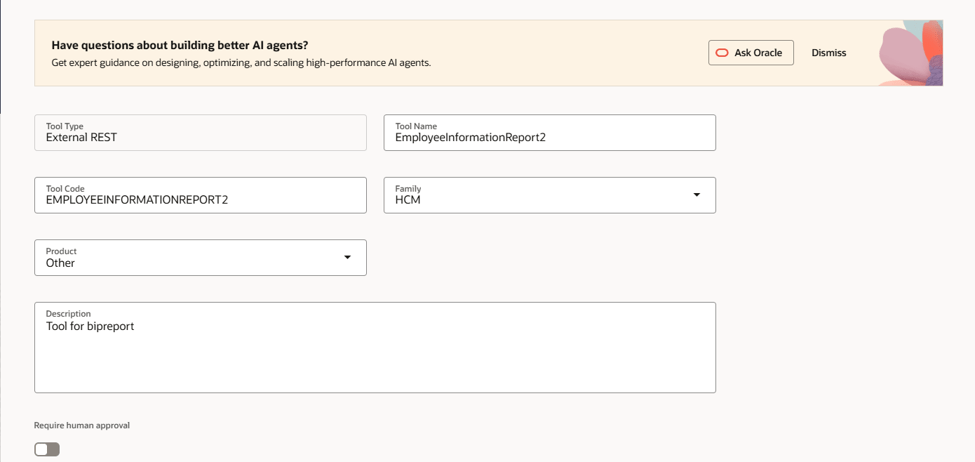
BI Publisher reports can be invoked through SOAP services. In AI Agent Studio, we can expose that call as an External REST tool so the agent can execute the report dynamically. Create a new tool and provide the following details:
- Event Type: External REST
- Tool Name: (Provide a meaningful name)
- Family: Select appropriate family
- Description: Provide a clear description of the tool purpose
Step 3: Configure Authentication
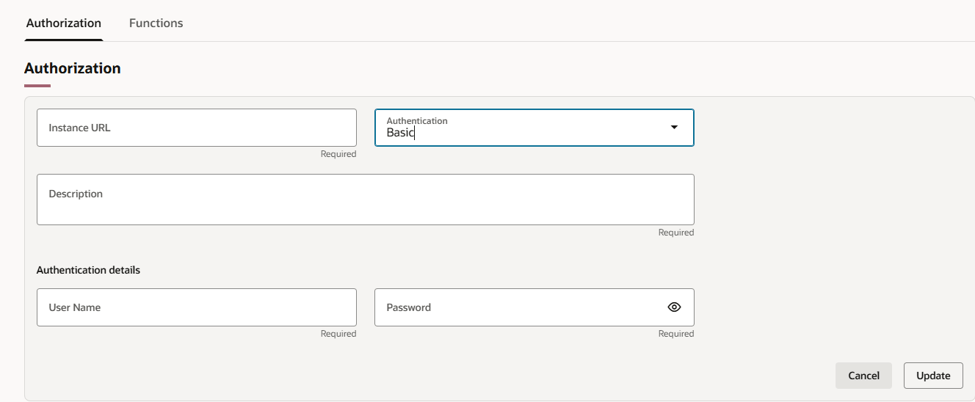
- Click Authentication
- Click Add
- Enter:
- Instance URL
- Authentication Type: Basic Authentication
- Authentication: Enter Instance Username and password
- Update
Step 4: Add the Report Execution Function
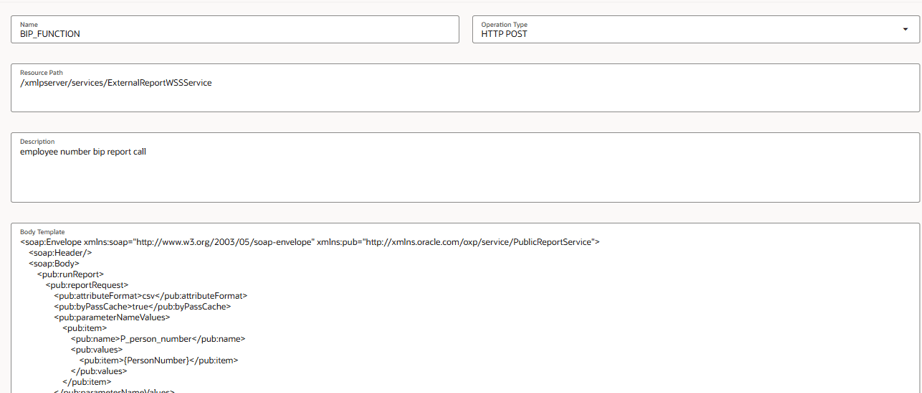
- In the Functions section, click Add
- Provide the following details
Function Details
Name: Name of the function
Operation Type: HTTP POST
Resource Path:
/xmlpserver/services/ExternalReportWSSService
Description: Description of the function
Step 5: Define the SOAP Body Template
The SOAP body passes the user-provided person number into the BI Publisher report parameter.
If you need the complete SOAP body template, please enter a comment and I will share it with you.
Important Notes for the Report Call
- If your report has parameters, include them inside
- <pub:parameterNameValues>.
- If no parameters exist, remove that section.
- Output format should be CSV.
- Report path must be provided in <pub:reportAbsolutePath>.
- Report must be stored in Shared Folders.

Step 7: Add the Required SOAP Header
Add the following header:
- Name: Content-Type
- Value: application/soap+xml Save the function and then save the Tool.

Step 8: Attach the Tool to the AI Agent
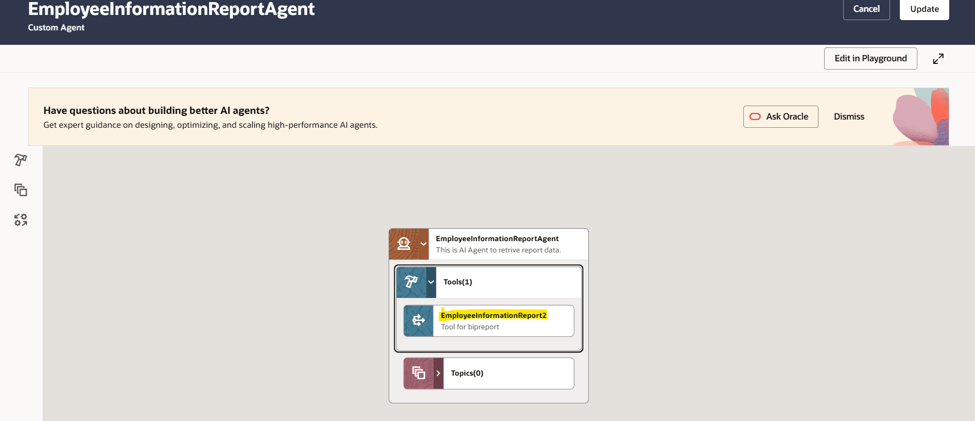
- Open your Agent
- Attach the newly created Tool
- Save the Agent
Step 9: Configure the Agent Prompt
Write a clear agent prompt that instructs the agent to ask for a person number when it is not provided, call the BI Publisher tool with that value, and present the returned employee data in a readable format. The prompt should also guide the agent to validate that the person number is available before invoking the report.
If you need the exact agent prompt used for this configuration, please enter a comment and I will share it with you.
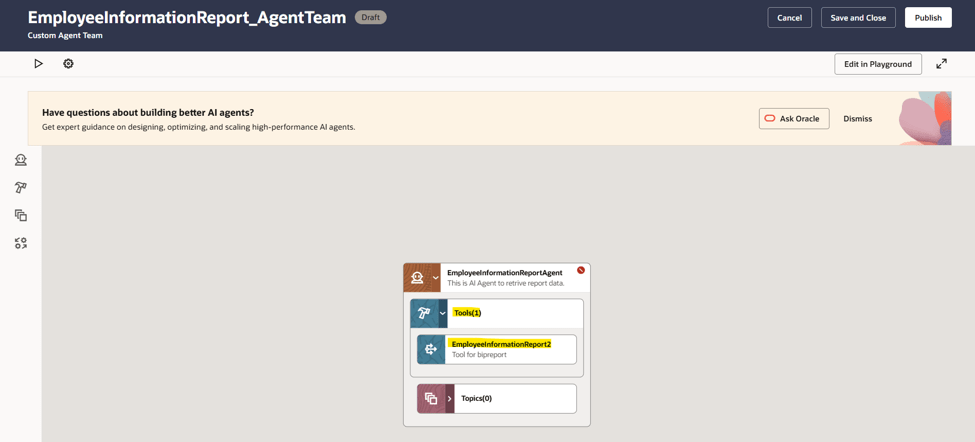
Step 10: Create an Agent Team and Test the Flow
- Create an Agent Team
- Add your Agent
- Save and publish the agent.
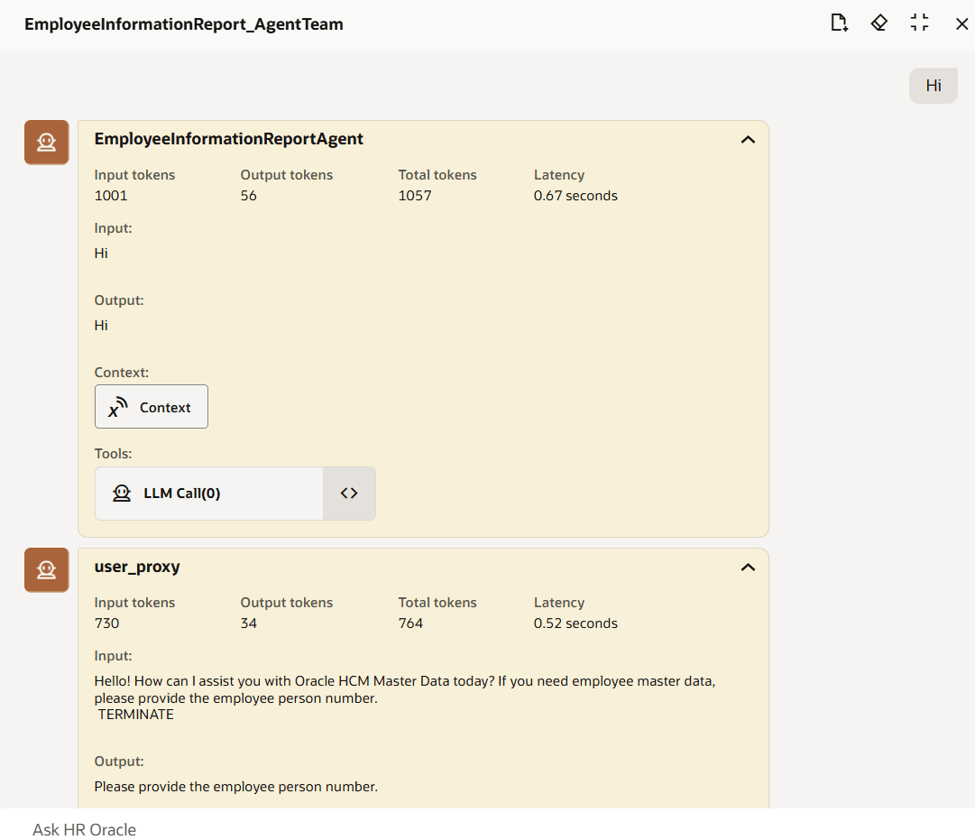
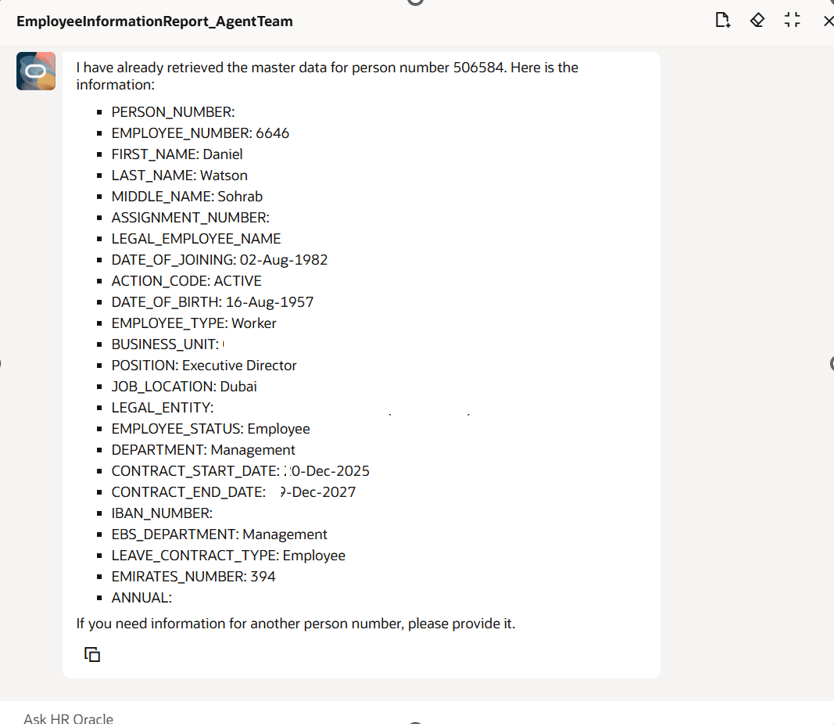
- Use debug mode to test the end-to-end flow by entering a sample person number and confirming that the agent retrieves and displays the expected employee data.
Important Considerations –
- Verify the user has the Payroll Interface Coordinator role (ORA_HRY_PAYROLL_COORDINATOR_JOB) or equivalent, which includes key privileges:
- PER_ENABLE_WORKER_SEARCHES_USING_EFFECTIVE_DATES_PRIV
- PER_ENABLE_WORKER_SEARCHES_USING_TERMINATION_DATE_PRIV
- PER_ENABLE_WORKER_SEARCHES_USING_NATIONAL_IDENTIFIER_PRIV
- If using custom roles, ensure inclusion of duties such as:
- ORA_HRC_HCM_AI_AGENT_MANAGEMENT_DUTY
- ORA_DR_FAI_GENERATIVE_AI_AGENT_HCM_ADMINISTRATOR_DUTY
- Confirm Access Groups are enabled and properly configured for the AI Agent.

 Fusion People Hub
Share your Feedback